Install IMonitor Software with Symantec EndPoint Protection
Please follow below instructions to install IMonitor software
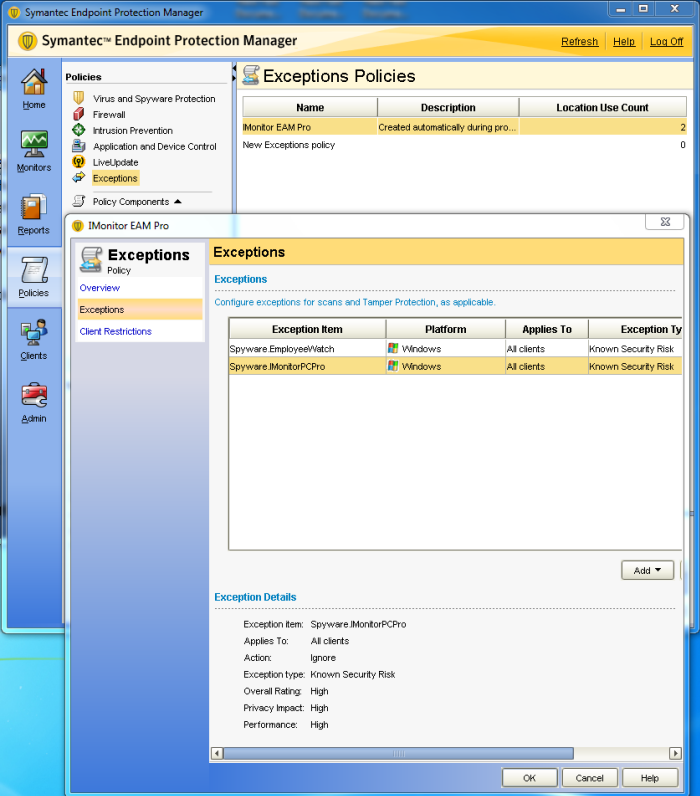
- 1. Log into the SEPM and click Policies.
- 2. In the left pane, click Exceptions.
- 3. Double Click New Exceptions Policy.
- 4. Click the Add button to open a drop-down menu. Please choose Windows Exceptions > Know Risks .
- 5. Add Spyware.EmployeeWatch and Spyware.IMonitorPCPro into the exception list.
- 6. Click OK when finished adding exceptions. Click OK again to finish creating the policy.
- 7. When prompted to assign the policy to a group, click YES. You can then choose the group you wish to assign the policy to and the policy changes will be sent out to members of the group.
Awards for our outstanding software products:


