Keyword filter


Keyword filter
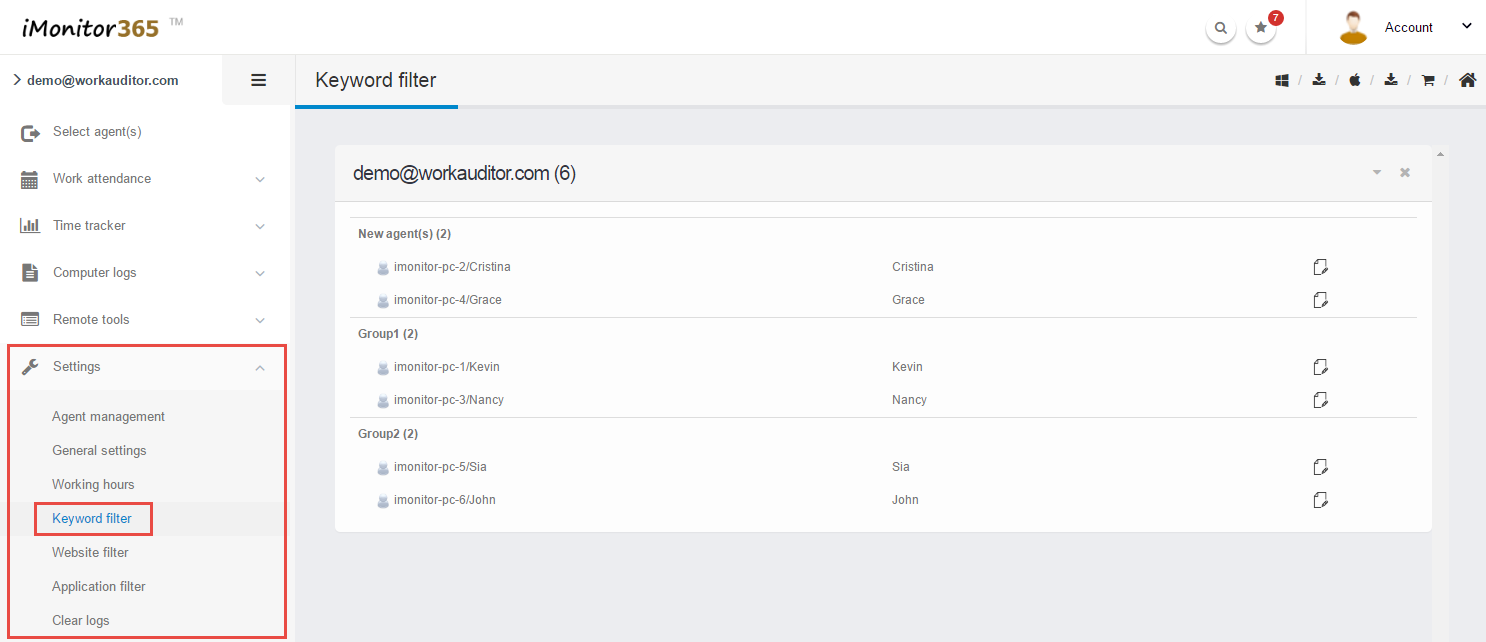
1. Please login iMonitor 365(WorkAuditor) web console.
2. Please click Settings > Keyword filter.
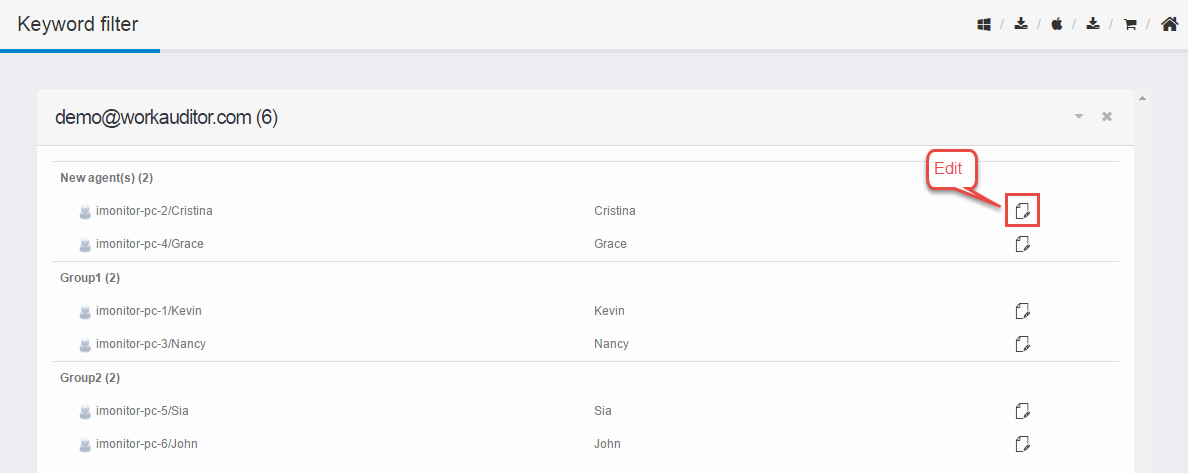
3. Click "Edit" icon  of the target agent in the agent list.
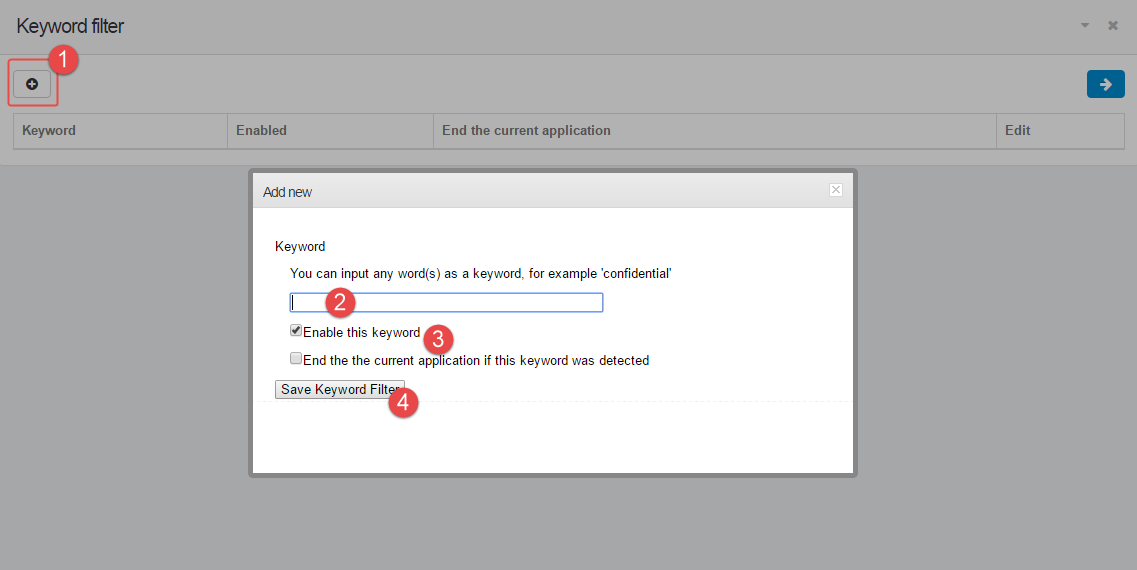
4. Edit the "Keyword filter"settings, you can add new filter(s), modify / delete existing filter(s).
4.1 Click the "Add New" button .
.
4.2 Input the keyword.
4.3 Tick "Enable keyword" or "End application" to perform the action.
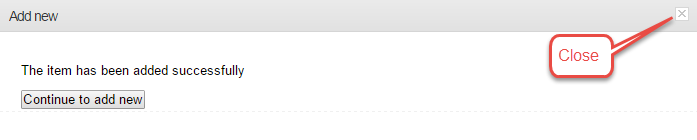
5. Click "Save Keyword Filter",then close the pop-up windows to go into next step.
6. Select destination agent(s). (This option is very flexible,you can copy the same settings to all agents. )
7. Click  button to deploy the change of the settings.
8. Finished.The changes will take effect on the remote computer after a couple minutes. If you get an error message, please try these steps again.